DentiPlanner
by DentiEasy Solutions LTD
The DentiPlanner learning hub
Get comfortable with DentiPlanner, one short video at a time. Practical walkthroughs for your everyday workflows.

Stock management
Watch tutorialRead script
Read script
In this tutorial, you’ll learn how to use the Stock Management dashboard, browse inventory categories, manage suppliers, and monitor stock alerts in DentiPlanner. From your workspace, select Stock Management. The Inventory Overview provides a quick summary of your current stock. In Stock shows items that have an available quantity and have not expired. Expiring Soon shows items approaching their expiration date. Expired shows items whose expiration date has already passed. Low Stock shows items that have reached their reorder point, helping you identify supplies that may need to be reordered. Out of Stock shows items with no remaining quantity. Select any status to open the corresponding list and review those items. To control how early DentiPlanner warns you about approaching expiration dates, tap the Settings icon in the top-right corner. Enter the number of days you want to use as your Expiring Soon Threshold, then select Save. Under Quick Actions, you’ll find shortcuts for Stock In, Inventory, and Suppliers. Select Inventory to browse your supplies by category. DentiPlanner organizes inventory into five categories: Consumables, Instruments, Materials, Sterilization, and Office Supplies. Return to the Stock Management dashboard and select Suppliers. The Suppliers page allows you to maintain a reusable list of supplier names for your inventory items. The Stock Alerts section identifies items that have reached their reorder point, and Recent Activities records changes made to your stock.

Stock management
Watch tutorialRead script
Read script
In this tutorial, you’ll learn how to create, edit, and delete a stock item in DentiPlanner. From the Stock Management dashboard, select Stock In under Quick Actions. Enter the item name and a short description. Select one of the five inventory categories, enter the unit of measure, then select or enter the supplier. Enter the current quantity, reorder point, cost per unit, storage location, and expiration date. If the item has a barcode, you can optionally scan it using your device’s camera. Review the information, then tap the save icon. DentiPlanner creates the item, records its starting quantity, and returns you to the Stock Management dashboard. To edit an item, open Inventory, expand its category, and tap the edit icon on its inventory card. Update the necessary details and tap save. To delete an item, tap the delete icon on its inventory card. Select Cancel to keep the item, or select Delete to remove it permanently.

Stock management
Watch tutorialRead script
Read script
In this tutorial, you’ll learn how to add and remove stock quantities and review your complete stock activity history in DentiPlanner. From the Stock Management dashboard, select Inventory. Expand the category containing the item you want to update. Use Add when new supplies arrive. Enter the number of units and select Confirm Stock In. DentiPlanner adds the quantity and records the change automatically. Use Remove when supplies are consumed, damaged, expired, or otherwise taken out of your available stock. Enter the number of units and select Confirm Stock Out. The quantity must be greater than zero and cannot exceed the current stock. After each change, the Inventory Overview, Low Stock status, Out of Stock status, and Stock Alerts update according to the item’s new quantity and reorder point. The Recent Activities section displays your latest changes. Select View All to open the complete stock activity history, including the starting quantity recorded when a new item was created.

Lab workflows
Watch tutorialRead script
Read script
In this tutorial, you’ll learn how to connect a dentist account with a dental lab account. On the dentist’s phone, open Dental Labs and select the lab you want to connect. From the Lab Overview page, tap the invite-code icon near the top of the screen. Generate a new invite code. The code is valid for five minutes, so share it with the dental lab before the timer expires. Now, on the dental lab’s phone, open the Dentists section and select the dentist who provided the code. Tap the invite-code icon near the top of the screen. Enter the code provided by the dentist, then tap Submit. This sends a connection request to the dentist. The hourglass icon indicates that the request is waiting for approval. Return to the dentist’s phone and open the same lab’s overview page. Review the pending lab request and confirm that the laboratory details are correct. Tap Approve to complete the connection. The dentist and dental lab accounts are now connected and can work together on dental lab cases.

Lab workflows
Watch tutorialRead script
Read script
From the Lab Technician workspace, select Dentists to open the Dentists List. Then tap New Dentist. On the New Dentist page, you can optionally add a profile picture for the dentist. Enter the dentist’s name, role, email address, and phone number. Fields marked with a red star are required. Under Clinic Information, you can optionally add a clinic image. Enter the clinic name, then add any available details such as the clinic address, website, phone number, and slogan. Review the information, then tap the save button in the lower-right corner. The dentist is added, and you’re returned to the Dentists List. This creates a dentist record inside your laboratory workspace. It does not connect the record to the dentist’s own DentiPlanner account. To establish that connection, use the separate dentist-and-lab synchronization process.

Getting started
Watch tutorialRead script
Read script
When setting up a new DentiPlanner account, you must choose the account type that matches how you will use the app. This choice determines which workspace, tools, and records are available to you. Choose Dentist if you manage a dental clinic. The Dentist workspace includes patients, appointments, clinical records, billing, insurance, dental labs, stock, revenue, and practice statistics. Choose Lab Technician if you work in a dental laboratory. This workspace is designed for managing connected dentists, laboratory cases, staff members, stock, payments, and credit. Choose Patient if you want to connect with your dental clinic and access the information the clinic shares with you through the patient portal. Choose Supplier if your business supplies dental products or materials. The Supplier workspace allows you to manage your items and stock and make your products available to dentists. Choose Lab Marketing if you want to promote a dental laboratory and showcase its work to dentists. This marketing workspace is separate from the Lab Technician workspace used for managing laboratory cases. DentiPlanner allows only one account type per login. After you confirm your selection, the account is permanently locked to that role. It cannot later be changed or used as another account type. For example, the same login cannot operate as both a dentist and a lab technician. Keeping the roles separate prevents records, connections, permissions, and activity history from becoming mixed together. If you need DentiPlanner in another role, create a separate account with a different login. Tap the role that matches your work and review the confirmation message carefully. Dentist and Lab Technician accounts must also accept the Data Processing Agreement. Once you are certain that you selected the correct role, confirm your choice to open the appropriate DentiPlanner workspace.
Getting started
Watch tutorialRead script
Read script
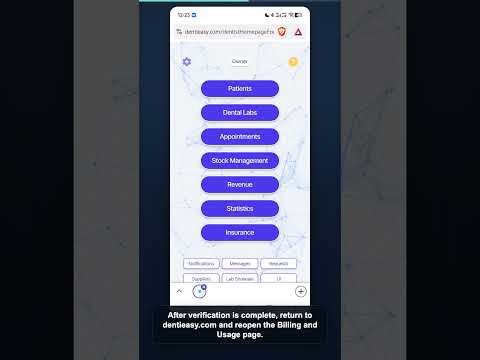
In this tutorial, you’ll learn how to activate your DentiPlanner subscription. Subscriptions can only be purchased through our official website, dentieasy.com. Subscription purchases are not available inside the Android or iPhone apps. Open dentieasy.com in your web browser and sign in to your dentist account. Go to the Settings page, then select Billing and Usage. If this is your first time subscribing, you’ll need to submit a subscription invitation request. This helps us manage access during DentiPlanner’s early-release period. Once your request is approved, you’ll receive an email confirming that you can subscribe. After receiving the approval email, return to dentieasy.com, sign in, and go back to the Billing and Usage page. The price displayed before verification may only be an estimate. Select Subscribe to begin billing-country verification. Stripe will ask for your payment details to verify your billing country. DentiPlanner uses this verification to confirm that subscriptions are available in your country. This verification does not purchase the subscription or charge the subscription fee. The subscription invitation and billing-country verification are required only the first time you subscribe. Returning subscribers with an approved account and verified billing country can proceed directly to checkout. After verification is complete, return to dentieasy.com and reopen the Billing and Usage page. Your confirmed price will now appear. The Global Standard plan includes the main DentiPlanner features and five gigabytes of storage. You can also include the optional Orthodontics add-on before checkout. Select Subscribe again. This time, Stripe opens the paid subscription checkout. Review the amount and complete the payment. When payment succeeds, DentiPlanner activates your subscription automatically and sends a receipt to your account email. Your subscription applies to your DentiPlanner account. You can use the subscribed features when you sign in through the website, Android app, or iPhone app. The Billing and Usage page on dentieasy.com displays your active plan, add-ons, renewal date, and expected renewal amount. Select Manage Subscription to update your payment method or open the secure Stripe Billing Portal. You can add storage or Orthodontics later through dentieasy.com. If you cancel, your subscription remains active until the end of the current billing period. Your DentiPlanner subscription is now ready to use.
Lab workflows
Watch tutorialRead script
Read script
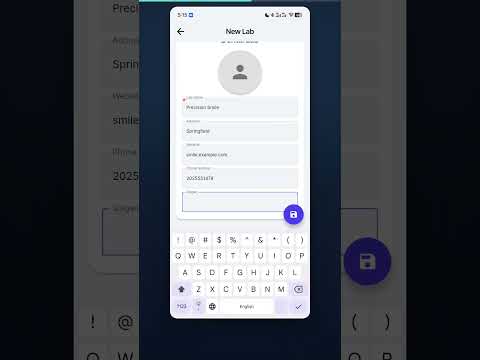
From the main screen, tap Dental Labs. On the Dental Lab List, tap New Lab. In the Dental Technician section, enter the technician’s name and phone number. Fields marked with a red star are required. You can also add the technician’s email and select a profile picture if desired. In the Dental Lab section, enter the lab name. You can also add optional details such as address, website, lab phone number, and slogan. Tap the lab image if you want to add a logo or photo. Please note, duplicate lab names are not allowed. If you add an email, it must not already belong to another lab in your list. Tap the save button in the lower-right corner. The dental lab is created, and you’re returned to the Dental Lab List.

Patient management
Watch tutorialRead script
Read script
The Patient Portal gives patients secure, read-only access to selected information from their dental record. The dental clinic remains in control of what is shared. To connect a patient, open the Patients section and select the patient you want to sync. On the Patient Overview page, tap the invite-code icon near the top of the screen. Choose which information the patient can access, such as appointments, billing history, payment history, medications, clinical documents, health reports, and requests. If the patient is a minor, select the appropriate parent or guardian relationship. Tap Generate Code. The invitation code is temporary and is displayed only when it is created, so share it securely with the patient or guardian before it expires. On the patient’s phone, open DentiPlanner, go to the Dentist List, and tap New Dentist. Enter the invitation code provided by the dental clinic, then tap Submit. After the patient submits the invitation code on their phone, continue on the dentist’s phone to review the request. Close the invitation window, then leave and reopen the Patient Overview page to refresh the connection status. Review the pending patient request. Confirm the patient’s details, access type, and enabled options, then tap Approve. The patient is now connected and can access the information you selected through the Patient Portal. The portal is read-only, so the patient can view shared information but cannot change the clinic’s records. After successfully connecting a patient, open the patient’s record and go to the Patient Overview page. Tap the patient-connection icon near the top of the screen. The connection window confirms that the patient is successfully connected. Tap Preview Portal to see the information currently available to this patient. A preview banner appears at the top of the Patient Portal, confirming that you are viewing it from the patient’s perspective. Review the clinic information and the sections available to the patient. The displayed sections depend on the access options selected when the invitation was created. Preview mode is read-only. It allows you to confirm what the patient can access without signing into the patient’s account. When finished, tap the back button to return to the Patient Overview page.

Getting started
Watch tutorialRead script
Read script
After creating a new DentiPlanner account, open the Settings page and replace the default placeholder information with your professional and clinic details. Completing this setup early ensures that the correct information and preferences are used throughout the app. From the main screen, tap the Settings icon in the top-left corner. At the top of the page, tap the small edit button beside your profile. Enter your name, professional role, email address, phone number, and license number. Under Clinic Information, enter your clinic’s name, phone number, address, website, and slogan. You can also add profile and clinic images. When finished, tap the save button. Next, select the dental numbering system used in your clinic. Choose Universal, FDI, or UK according to your preferred charting system. Select your clinic’s currency. This currency will be used when displaying financial values in DentiPlanner. The Patient ID Prefix is a short code added to the beginning of every automatically generated patient ID. For example, using DENT can produce patient IDs such as DENT-0001. Enter a prefix of up to five characters. When the checkmark appears, tap it to save your changes. Show Info controls the help icons displayed throughout the app. Keep this enabled if you want quick explanations of unfamiliar fields and features. Show P–L Sync displays indicators for synchronized information. P identifies data shared with synchronized patients, while L identifies data shared with synchronized dental laboratories. This setting controls whether those indicators are visible; it does not enable or disable synchronization itself. Show Unique ID controls whether each patient’s automatically generated ID appears on the Patient Overview page. Turning it off only hides the ID from view; it does not remove it from the patient’s record. Homepage UI Settings and Manage Account will be explained in separate tutorials.

Patient management
Watch tutorialRead script
Read script
On the Patient Registration page, enter the patient’s full name. Fields marked with a red star are required. Next, enter the patient’s mobile number. You can also add optional details such as date of birth, gender, email, address, insurance information, and notes. For this example, we’ll leave the remaining fields blank. Tap the save button in the lower-right corner. The patient is created, and you’re returned to the patients list. Please note that patient names must be unique. Duplicate names are not allowed. From the patients list, tap the name of the patient you want to edit. On the Patient Overview page, tap the small edit button. Update any information that has changed, such as the patient’s name, mobile number, date of birth, gender, email, address, insurance information, or notes. Fields marked with a red star are required. When finished, tap the save button in the lower-right corner. Your changes are saved, and you’re returned to the Patient Overview page.